
Battery Health and Charging Problems: What to Check
November 29, 2026
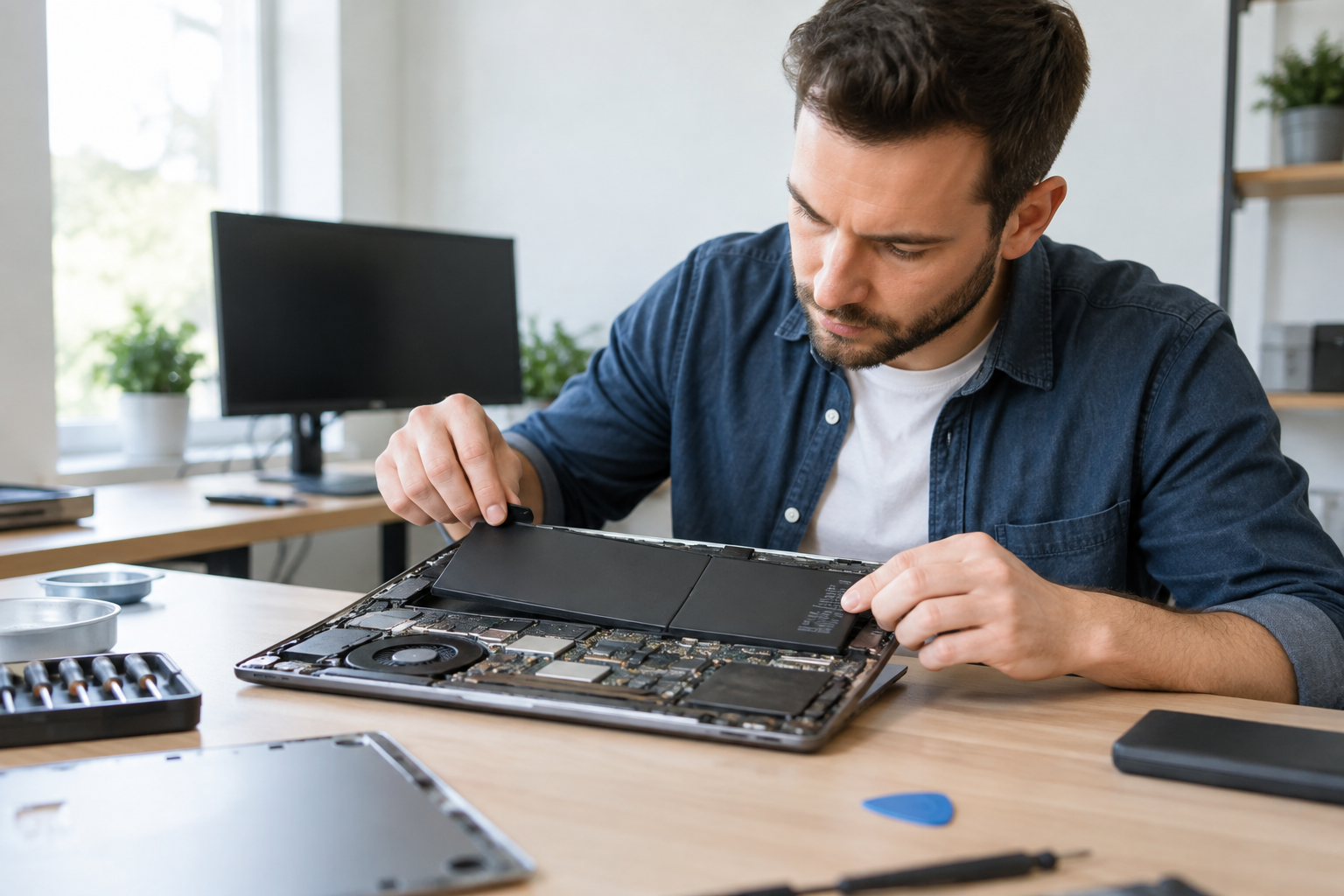
A battery that will not charge can turn a useful laptop or phone into a frustrating one. Sometimes the cause is a worn-out battery. Other times, the problem is as simple as a damaged cable or a setting that limits charging.
Here is how to recognize common battery problems, try a few safe checks, and know when to ask for professional help.
Battery Health Changes Over Time
Rechargeable batteries gradually lose some of their ability to hold energy. As a result, a device that once lasted through the day may need an outlet much sooner. This is normal aging, although heat and heavy use can contribute to wear.
Signs that a battery may need attention include:
- The charge drops much faster than it used to.
- The device shuts off even though the battery indicator shows charge remaining.
- The battery takes unusually long to charge or will not charge at all.
- The device works when plugged in but shuts down shortly after being unplugged.
- The operating system displays a battery service warning.
These symptoms do not always mean the battery is the only problem. A charger, port, software issue, or internal component may also be responsible.
Start With the Charger and Outlet
If your device is not charging, try these basic checks before assuming the battery needs replacement:
- Try another wall outlet. A switched-off power strip or faulty outlet may be the issue.
- Inspect the cable and adapter. Look for fraying, bent connectors, cracks, or other damage. Stop using a damaged charger.
- Make sure connections are secure. Check both ends of the cable and the connection to the wall adapter.
- Try a compatible charger. If you have a known working charger recommended for your device, see whether it makes a difference.
- Restart the device. A temporary software issue may be affecting the charging display.
Not every USB-C charger or cable supplies enough power for every laptop. A lower-power charger may charge slowly, charge only while the laptop is asleep, or not charge it at all. Also, some laptops can charge through only certain USB-C ports. Check the manufacturer's guidance if you are unsure.
Check for Charging Limits and Battery Settings
A device that stops charging before reaching 100% is not necessarily broken. Many laptops and phones include battery protection features that limit the maximum charge or delay the final part of charging. These settings can help reduce battery wear.
Look in your device's battery or power settings for options such as optimized charging or a charge limit. Some computers also provide a battery health status or recommend service. On a Mac, look under System Settings > Battery. On Windows, battery and power options are available in Settings; some manufacturers provide additional battery tools.
If a setting explains the behavior, you can decide whether to keep it enabled. A lower charge limit may help protect the battery, but you may prefer a full charge before a long day away from an outlet.
Look After the Charging Port
A loose connection or debris in a charging port can interrupt charging. First, disconnect the charger and look for visible dirt or damage. Avoid poking metal objects into the port, forcing a connector, or using liquids to clean it. If the port looks damaged or needs cleaning and you are not comfortable doing it safely, have a technician inspect it.
If the device or charging port is wet, disconnect it from power and follow the manufacturer's drying instructions before trying to charge again.
Know When to Stop Using the Device
A swollen battery is a safety concern. Signs can include a bulging case, a screen lifting away from the frame, or a trackpad that no longer sits flat.
If you suspect swelling, stop using and charging the device. If it is safe to do so, unplug it and place it away from flammable materials. Do not press on the bulge, puncture the battery, or try to remove it yourself. Contact a qualified repair professional for guidance. If the device is smoking or burning, move away and call emergency services.
An unusually hot device, a burning smell, or a charger that sparks or makes unusual noises also deserves attention. Disconnect power if it is safe to do so and stop using the affected equipment.
When a Battery Replacement May Help
If a compatible charger works properly but the device still loses power quickly, the battery may be worn out. A technician can check the battery and charging system before recommending a repair. This matters because replacing the battery will not fix a damaged charging port or another internal fault.
When possible, back up important files before bringing in a device for service. Used batteries also need proper recycling; they should not go in household trash.
If your laptop or phone is not charging as it should, contact Compubrainexpert in Lake Zurich for help identifying the problem.